Part 3. Modules
3.4 Attendance
Rolls, late arrivals and early departures, unexplained absences and their approval, unsubmitted rolls, rates, contact hours for overseas students, the evacuation list, one-to-one sessions and the sign-in kiosk.
Written forTeacherFront officeRegistrarHead of house or yearWellbeingPrincipal and executiveBusiness managerIT
What it is for
Attendance is the school's register. A teacher marks each student in each lesson, the front desk records who arrived late and who left early, and the office explains the absences. From those marks Kestrel works out what the register says about a student for a day, a lesson or a year.
The register is kept whole. A mark that is corrected, a movement that is withdrawn and an absence that is approved each stay on the record with who did it and when, so a later question about a day gets the answer for that day.
Who uses it
| Who | What they do here | Capability |
|---|---|---|
| Teacher | Reads and marks the roll of a class the timetable names them on. | attendance.roll.read and attendance.roll.write |
| Front office | Records arrivals and departures and visitors, explains and approves absences, and writes a roll the teacher cannot. | attendance.movement.write, attendance.visitor.write, attendance.absence.write and attendance.roll.override |
| Head of house and principal | Read the register and set the attendance patterns Kestrel watches for. The principal can also write a roll as the office. | attendance.roll.read, attendance.rule.write and, for the principal, attendance.roll.override |
| Registrar, wellbeing and business manager | Read the register. | attendance.roll.read |
Key ideas
- Roll
- The marks for one class in one lesson on one day. It is due when the lesson starts, marked when a teacher submits it and open for correction until the lesson's day is out.
- Mark
- One student's "Present", "Absent", "Late" or "Left early" in one lesson.
- Movement
- A late arrival or an early departure that the front desk records, with the time and a code if the family gave a reason. The roll shows it beside the teacher's mark.
- Absence
- A period a student was away, with a reason. A reply from a parent arrives as an absence with no code and explains nothing until the office approves it under a code.
- Explained and unexplained
- An absence is explained when an approved absence under a code that counts as explained covers it. A lesson marked absent with nothing covering it is unexplained, and one waiting for approval reads as waiting.
- Attendance rate
- The share of a student's school days they attended, over a range of days. Days with no timetabled lessons are not counted.
- Pattern
- Something a rule watches for each morning, such as three Fridays absent or a rate below a level. A match flags the student's record.
- Contact hours
- For a student on a student visa, the share of their study period's scheduled hours that they have attended, and where that share is heading.
Screens
Rolls
/app/attendanceThe classes held on a day and where each roll has got to, with the periods as filters. Open a class to mark its roll.
Needs
attendance.roll.readA roll
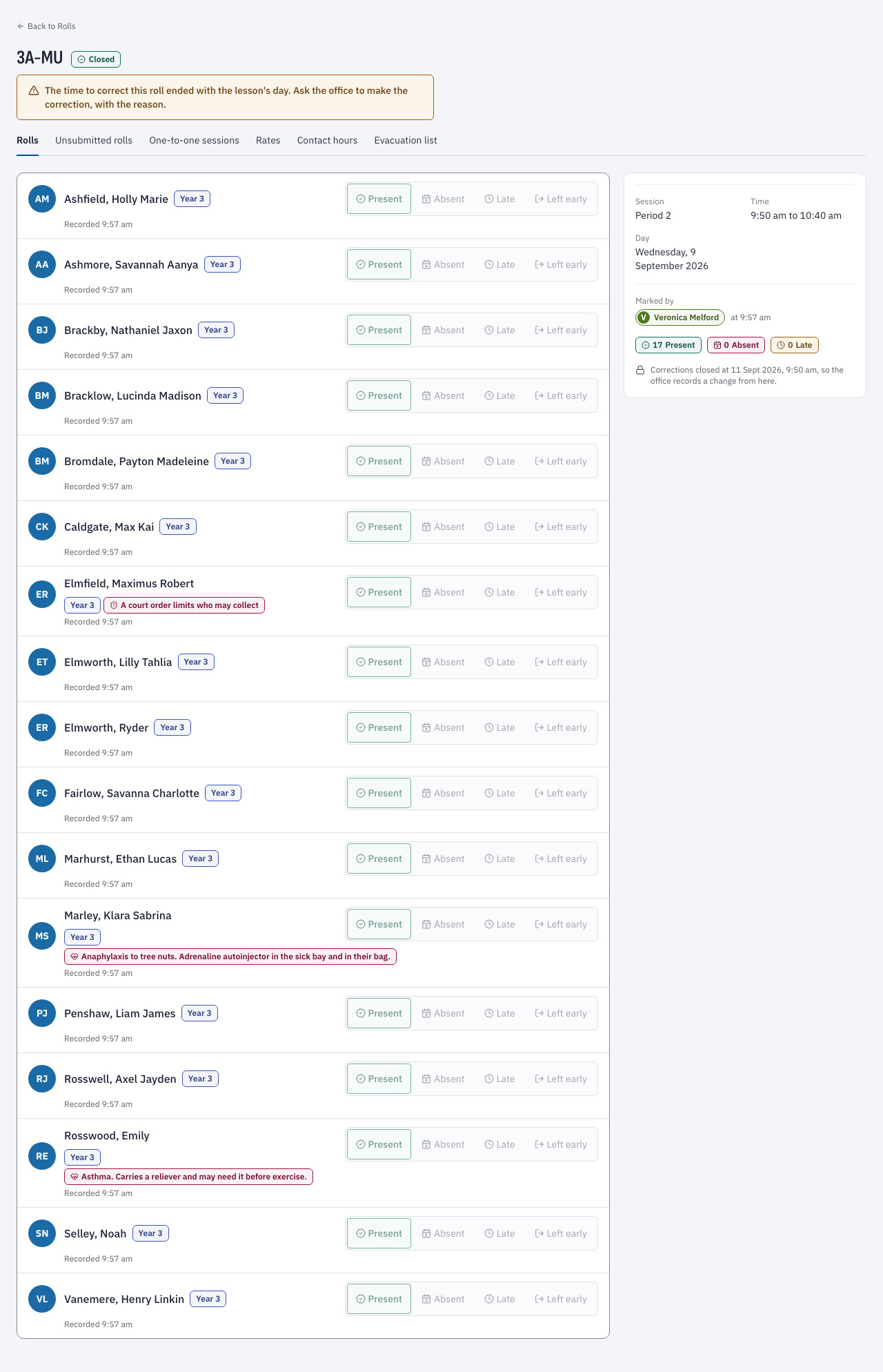
/app/attendance/rolls/[ref]One class's roll for one lesson: each student with the mark, when it was recorded and what the day's arrivals and departures say.
Needs
attendance.roll.readArrivals and departures
/app/attendance/movementsThe late arrivals and early departures on a day, with a form to record one.
Needs
attendance.movement.writeUnexplained absences
/app/attendance/unexplainedThe students marked absent on a day with nothing explaining it, the family contact attempts so far and the replies waiting for approval.
Needs
attendance.absence.writeAbsences
/app/attendance/absencesThe absences recorded over a range of days, who recorded and who approved each, with a way to approve or withdraw one.
Needs
attendance.absence.writeUnsubmitted rolls
/app/attendance/unsubmittedLessons that have ended with no roll, who should have taken each and what reminders went out.
Needs
attendance.roll.readRates
/app/attendance/ratesThe attendance rate of each student in a year level, and the share at or above the school's level.
Needs
attendance.roll.readContact hours
/app/attendance/contact-hoursEach overseas student with a study period in progress, how much of the contact hours they have attended and where they are heading.
Needs
attendance.roll.readTen days this term
/app/attendance/term-noticeIn South Australia, each student with ten or more school days this term on which an absence nothing explains was marked, for the principal to decide whom to report to the Chief Executive.
Needs
attendance.roll.readEvacuation list
/app/attendance/on-siteWho is on site at a campus right now, by pastoral class, with visitors who have not signed out. It can be printed.
Needs
attendance.roll.readOne-to-one sessions
/app/attendance/one-to-oneSessions on a day with only one student, such as a meeting or tutoring, with who takes each one and where its roll is up to.
Needs
attendance.roll.readLocal authority returns
/app/attendance/returnsIn England, each pupil the attendance return and the sickness returns must name, with their address, and the day each return was last sent.
Needs
attendance.absence.writeSign in and out
/kioskThe front-desk device where students and visitors sign in and out. A paired kiosk needs no staff sign-in.
Absence codes
/app/settings/attendanceThe reasons the school records an absence under.
Needs
tenant.settings.writeKiosks
/app/settings/kiosksThe credentials that pair a kiosk device with the school.
Needs
tenant.settings.writeAbsence follow-up
/app/settings/follow-upWhen to message a parent about an unexplained absence.
Needs
tenant.settings.writeRoll chase
/app/settings/roll-chaseWhen to remind a teacher whose roll is not submitted, and whom to tell after that.
Needs
tenant.settings.writeAttendance patterns
/app/settings/attendance/rulesThe patterns the school wants flagged, and who is told.
Needs
attendance.rule.writeContact hours
/app/settings/attendance/contact-hoursThe share of contact hours overseas students are watched against, and who is told when one is heading below it.
Needs
tenant.settings.writeLocal authority returns
/app/settings/attendance/returnsIn England, how often the attendance return is due and the share of sessions missed at which a pupil fails to attend regularly.
Needs
attendance.rule.write
Marking the roll
Open "Attendance". It shows the classes held today, one line each, with where the roll has got to: "Not yet", "Due", "Marked", "Missed" or "Closed". Choose a day, or a period to see which rolls are due at the bell. The day and the period are in the address, so a colleague opening your link sees what you see. A day the school has not timetabled has no classes, and the page says so.
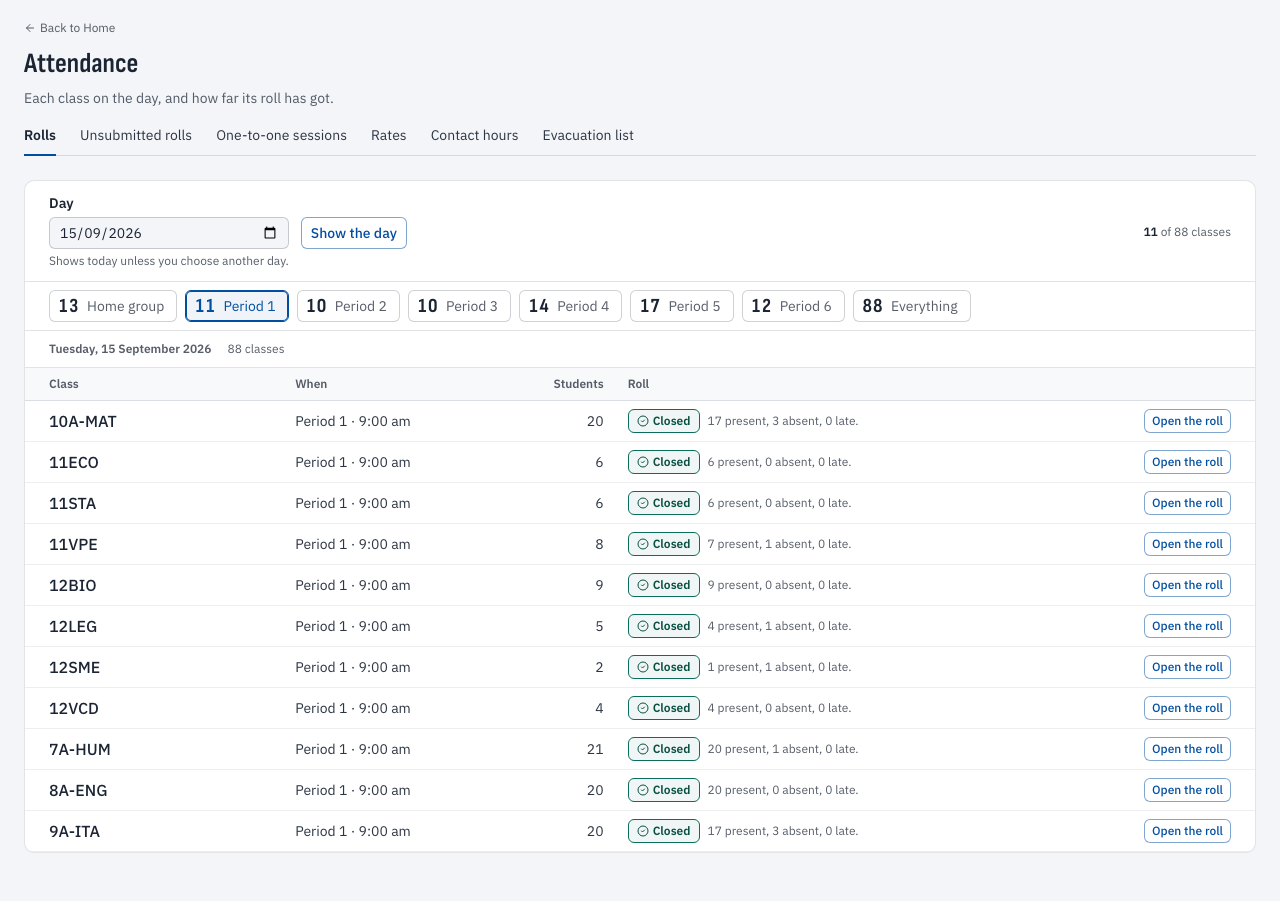
/app/attendance- Open the class from the list. The roll opens as a page of a register: the class and the state of the roll first, then each student, family name first.
- Choose "Present", "Absent", "Late" or "Left early" for each student. Where the front desk has already recorded an arrival or a departure, the time shows under the student.
- Press "Mark the rest present" once the exceptions are marked. It fills only the lines still empty and leaves anyone you marked alone.
- Press "Submit the roll". It stays unavailable until each student has a mark. The summary above the list counts the marks.
- To correct a mark later, open the roll, change the mark and press "Save the corrections". Only the marks that changed are written.
/app/attendance/rolls/[ref]- Mark the roll. Mark the roll
- Correct a roll. Edit a roll
A teacher can mark a roll only for a lesson the timetable names them on, relief included. A roll the timetable does not name you on says so at the top, and where the office can write it the page asks "Why you are writing this roll". The reason is kept with the change in the audit trail. Once the lesson's day is out, a teacher can no longer correct a roll, and the office records the change.
Arrivals and departures
The front desk records a student arriving late or leaving early on "Arrivals and departures". The form is above the list, because it is the act the queue is waiting on. The list shows each movement in the order it happened, with who recorded it. A movement withdrawn in error stays on the list marked "Withdrawn" and is left out of the count.
- Set the "Day" if it is not today. Find the "Student" by name or number. Only the students enrolled on that day are offered.
- Choose "Arriving late or leaving early". The "Time" starts at the current time on the school's clock.
- Choose a "Code" if the family gave a reason, or leave it as "No code". Choose the "Campus" if the school has several.
- Record it. The roll then shows the time beside the teacher's mark, and the form clears for the next student.
- To take a movement back, press "Withdraw" on its row.
- Record a late arrival or an early departure. Record a late arrival or an early departure
Explaining absences
On "Unexplained absences", set the "Day" and the "Campus". Each row is a student with the lessons nothing explains, why the day is still unexplained, and each attempt to contact the family that day: a message sent, delivered, read or failed, or a conversation. The number of replies waiting shows beside it. A parent's reply to the follow-up lands as an absence with no code, and the office approves it to explain the day.
- Tick the students whose replies you will approve. The page offers at most a set number at once.
- Choose the "Code to use". It opens with the code the ticked replies agree on, and you can change it.
- Press "Approve". Kestrel says how many were approved and how many were not. A reply that could not be approved stays ticked with the reason beside it.
- If no-one in the family has been contacted, the row says so. A family that could not be reached by message is a telephone call.
On "Absences" the office reads each absence over a range of days. Fill "From" and "To", press "Show these days", and choose "Waiting for approval" to narrow the list. The columns are "Student", "Covers", "Code", "Reason", "Recorded" and "Approved by". Press "Approve" on a row, choose the code and press "Approve under this code", or press "Withdraw" on an absence recorded in error. A withdrawn absence leaves the list.
- Approve replies to unexplained absences. Approve the replies to unexplained absences
- Approve or withdraw an absence. Approve or withdraw an absence
Unsubmitted rolls
A coordinator reads "Unsubmitted rolls" at the end of a period. It lists the lessons that have ended on the day with no roll, with the class, the period, who the timetable says takes it and the reminders sent. A reminder column reads "Teacher notified" with the time, and then the staff the school chose to tell, or "Automatic reminders are off" where the school has switched the chase off. A lesson with no teacher on the timetable says so, which is the cue to look at the timetable. The same count shows on the home page as the rolls due so far today.
Rates and contact hours
On "Rates", choose a "Year level" and a range of days, or "Year to date". The page shows the rate across the year level, how many students are at or above the school's level and how many are below it, with a chart by campus and a table of each student's rate, lowest first. The table says how many days each student attended out of the days possible, and a day with an absence is not counted until the school's bell times are set.
On "Contact hours", each student on a student visa with a study period in progress shows how much of the contact hours they have attended and the share they are heading for over the whole period. The figures at the top are the students watched, the number heading below the school's threshold and the alerts to pick up. Choose "Day" to read the list as the weekly check saw it. A student heading below the threshold raises an alert on their record that a staff member acknowledges.
A student's own record shows a summary too: the rate this year and this term, the lessons not explained and the latest lessons they missed.
On site, and one-to-one sessions
The "Evacuation list" shows who is on site at a campus right now. Choose a campus under "Show the list for", or "The whole school". Each student expected on site is listed by pastoral class with what the roll says: "Present", "Present, arrived" with the time, "Absent" or "Expected, nothing recorded yet". Visitors who have not signed out appear below. Press "Print the list" to take it to the assembly point with a tick column, headed with when it was generated. The page keeps the last list on the device, so it still shows if the network goes down, and says so.
On a day that is not a school day at the campus, the list shows the boarders. On "One-to-one sessions", pick a day to see the sessions with one student on the roster, such as a meeting or tutoring, with who takes each one and where its roll is up to. A session like that is not in a class list, so this page is where it is found.
The kiosk
A kiosk is a device at the front desk where a student signs in late or out early, and a visitor signs in and out. IT issues a credential under Settings, "Kiosks", and pairs the device once. After that anyone at the counter uses it without a staff sign-in.
- In Settings, "Kiosks", under "Issue a kiosk", fill "Name", choose the "Campus" and the "PIN or card scheme" (or "Names only") and press "Issue the credential".
- Press "Copy the credential". It is shown once.
- On the device, open the address shown under "Open on the device", paste the credential and press "Pair this kiosk".
- To retire a kiosk, press "Revoke" on its row. A credential has a state of "Live", "Expired" or "Revoked".
At the kiosk the first question is "Who is signing in or out?", with "A student" and "A visitor". A student finds themselves by name or by a PIN or card number, chooses "Arriving late or leaving early?" and a reason, and chooses "Record and print a slip" or "Record without a slip". A visitor chooses "Signing in" or "Signing out", gives their name, who they are with, who they are here to see and a badge number, and presses "Sign in" or "Sign out". The kiosk tells each person what information it keeps, and shows the student privacy policy on request.
- Pair a kiosk. Pair a kiosk
Journeys
The roll is part of each school day, and a long absence or a pattern can lead to a wellbeing concern. A student sent home from sick bay leaves through the front office, so the movement is recorded at the counter.
Settings
Five areas in Settings shape attendance. "Absence codes" is the list of reasons and which of them count as explained. "Kiosks" stores the credentials. "Absence follow-up" sets when Kestrel messages a parent about an unexplained absence, for the whole school and for any campus that should have its own rule. "Roll chase" sets how many minutes after a lesson to remind the teacher and when to tell other staff. "Contact hours" sets the share of a study period that overseas students are watched against, and who is told.
Under "Attendance patterns", a head of house or the principal adds a rule with "Add a rule". Name it, choose what it counts (absences in a window, unexplained absences, lates, a weekday, a school event or a rate below a level), who it applies to (the whole school, one campus or one year level), how many and over how many days, and who is told. Each morning Kestrel checks the rules. A match flags the student's record, and a person with the grant picks it up with "Acknowledge" and writes what was done about it.
- Set when absence follow-ups go out. Set when absence follow-ups go out
Training notes
Teachers learn the roll in "The roll and the markbook", about 30 minutes, and need only "Marking the roll". The front office learns arrivals, departures and absences in "The counter in the morning", also 30 minutes. A coordinator needs "Unsubmitted rolls" and "Rates". IT needs "The kiosk" and the settings.