Part 2. Journeys
2.2 Enquiry to enrolment
An enquiry, a tour, an application, a waitlist, an offer and a start, from the first call to the student's own page.
Written forRegistrarFront officeFamilies
What this journey achieves
A family asks about a place, and some months later a student starts. In between, the school records what happened in order, and Kestrel keeps the child on one record the whole way. The enquiry, the application, the offer and the student are the same person, so nothing is typed in twice.
The registrar owns the journey. The front office often takes the first call and records the enquiry. The family sees their own application in the portal and answers the offer there.
The steps in order
- Front office
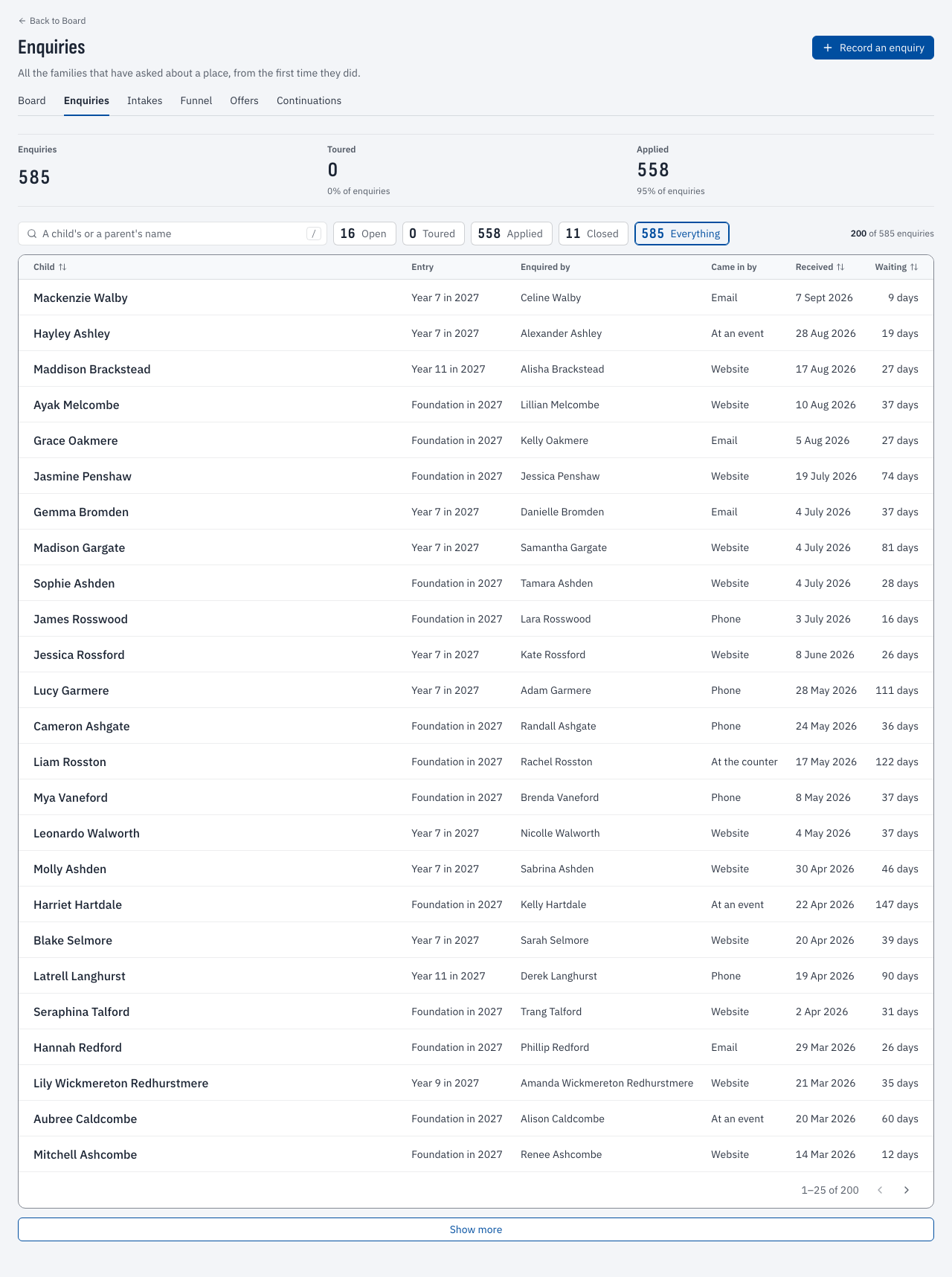
Choose "Record an enquiry". Under "The child" enter the given names, family name and entry year, and under "Who is asking" enter the enquirer and a phone number or email, then choose "Record it". An enquiry sent from the school's website form arrives in the same list.
/app/enrolment/enquiries3.2 Enrolment - Registrar
Open the enquiry's row and choose "Record a tour" once the family has visited. The enquiry reads "Recorded as toured", and the stage filter above the list can show only those who have toured.
/app/enrolment/enquiries3.2 Enrolment - Registrar
Make sure there is an intake to apply to. Choose "Open an intake", give the entry year, the year level and the number of places, then choose "Open it".
/app/enrolment/intakes3.2 Enrolment - Registrar
On the enquiry, choose "Record an application". The child becomes an applicant, and "Open the application" on the board opens the application's own page.
/app/enrolment/applications/[id]3.2 Enrolment - Registrar
Work along the board as documents and fees arrive. Choose "Record an event" to add an interview, an assessment or a waitlisting, and the stage track on the application updates.
/app/enrolment3.2 Enrolment - Registrar
Open the intake's waitlist, reached from the link "The waitlist for" the year level and year. Applicants are ranked by the school's waitlist rules, which are set in Settings.
/app/enrolment/intakes/[id]/waitlist3.2 Enrolment - Registrar
Choose "Make an offer", pick the applicant, set the date the offer lapses and the year level, and choose "Make it". "Open the letter" on the row shows the letter the family receives.
/app/enrolment/offers4.4 Applications and offers - Families
The parent opens the portal's applications page, reads the "Offer of a place" card and chooses "Accept the offer". A parent without responsibility for the child reads the card and cannot answer it.
/portal/applications4.4 Applications and offers - Registrar
The acceptance shows on the application. When the student starts, choose "Record an event" and record the start. The student's own page has the record from then on, and the finder shows it by name.
/app/people/[id]3.1 Students and households
/app/enrolment/enquiries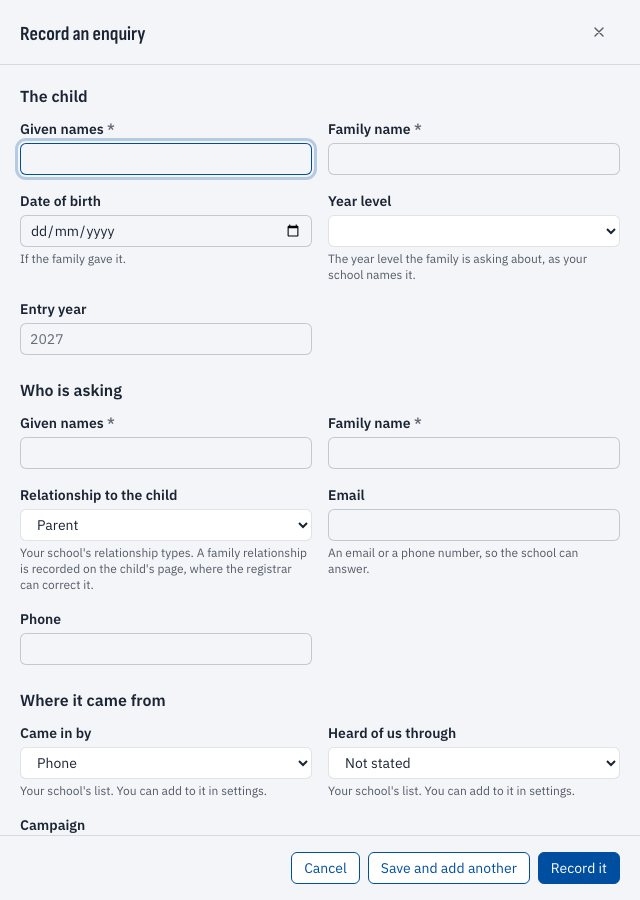
/app/enrolment/enquiriesThings to watch for
What happens next
A student who has accepted waits for the first day. The school builds classes, checks households and loads photographs. The family's continuation answer comes up again each year, and leaving is covered in its own journey.